Help
A screenshot-by-screenshot walkthrough of the core flows. For quick answers instead, see the FAQ. Screens shown here are from a real seeded demo team — yours will look the same, with your own roster and colors.
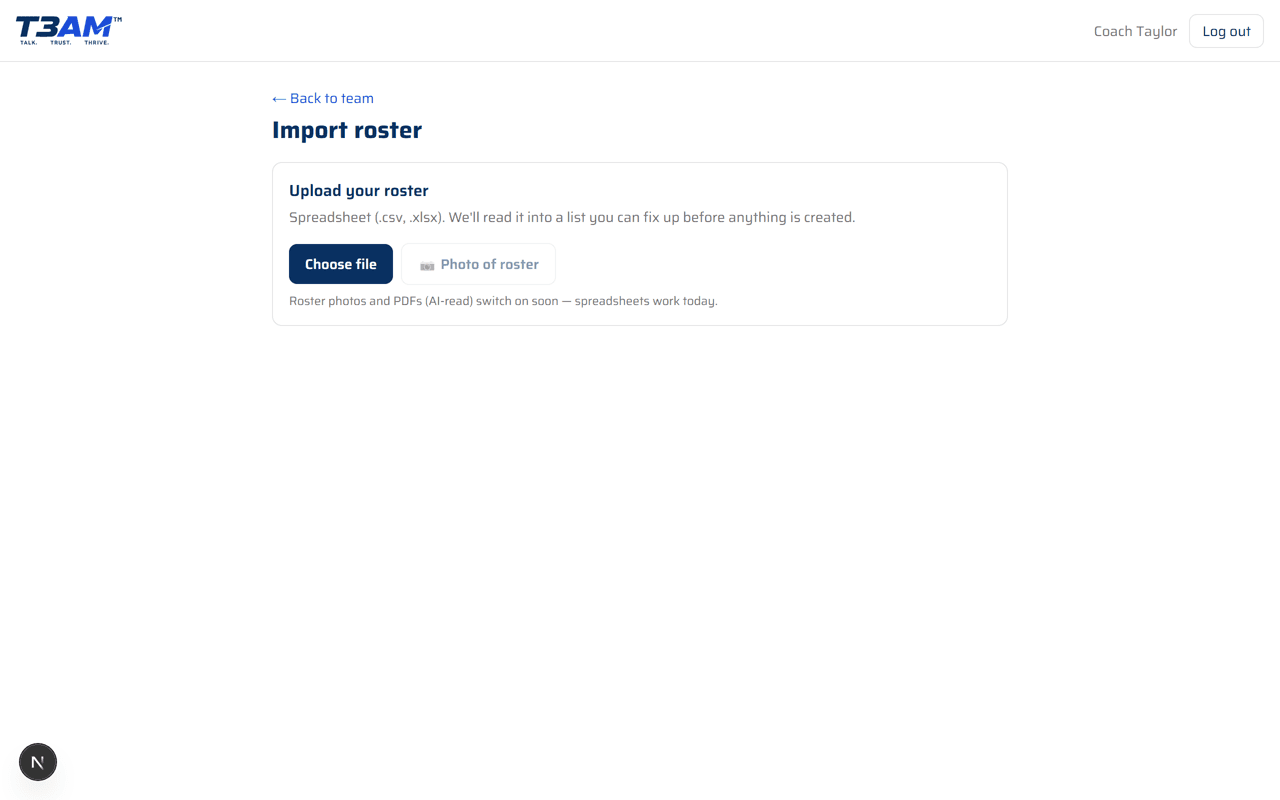
Import your roster instead of typing it in
Upload a roster spreadsheet (.csv, .xlsx) and it's read into a list you can check over before anything's created — no typing every player in one at a time. Snapping a photo of a printed roster is on the way; spreadsheets work today. It's under Roster → Import, and confirming gives you the team's one join link to share with families.
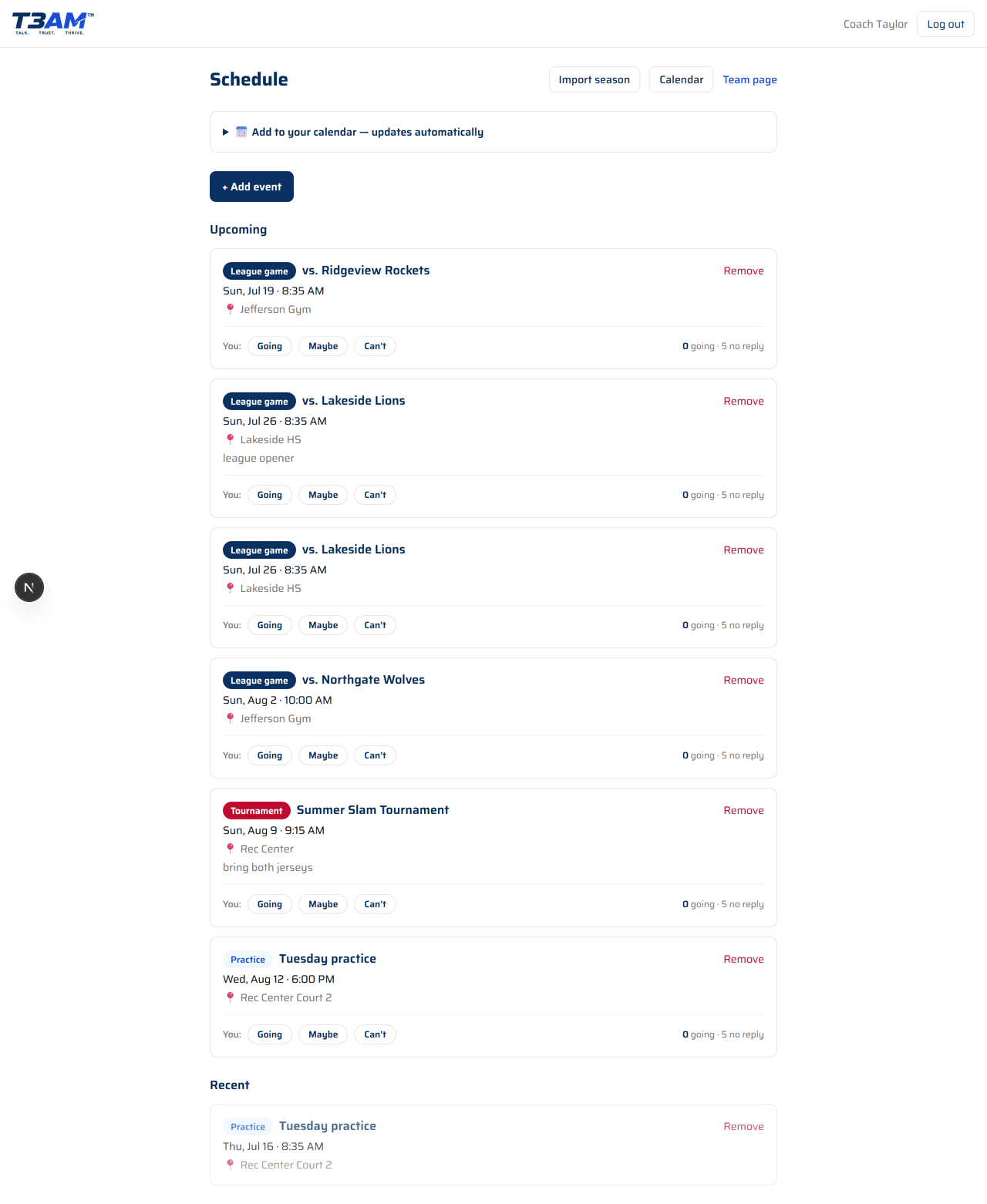
Your season, all in one place
Practices and games, with locations and map links. Subscribe once with a calendar link and it updates itself — no more re-checking whether practice moved. Reminders go out automatically. Games and practices assume every player is coming. When a kid can't make it, their parent taps “Can't make it” on that child's row and your count updates — players under 13 don't need a login of their own for this.
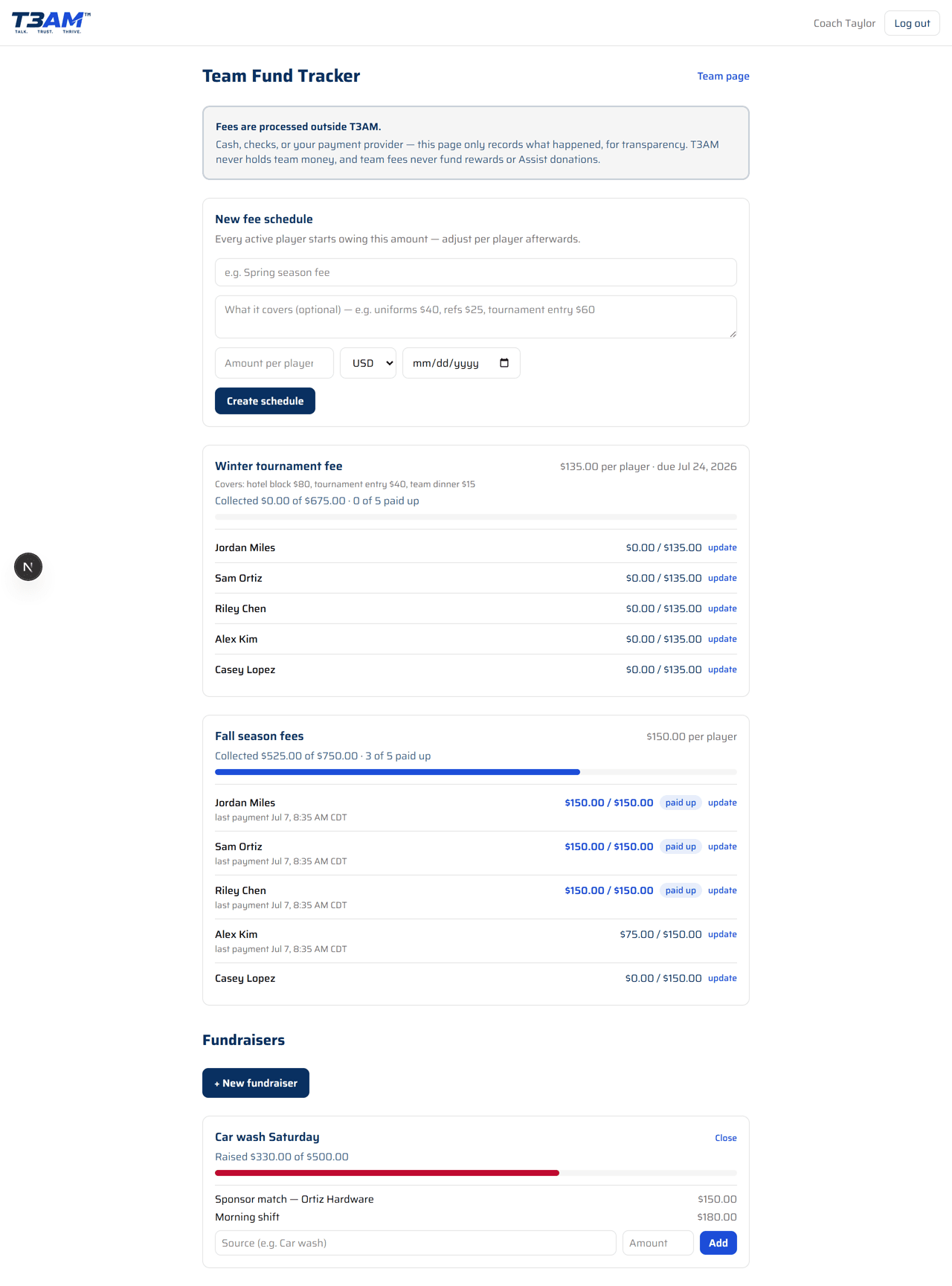
Fees, tracked in the open — for your own family
Everyone sees the team total — how much is collected, how much is left. Individual rows are scoped: a parent sees only their own linked player's status, a player sees only their own, and the full per-player breakdown shown here is the head coach and admin's management view, not something every family can see about every other family. T3AM tracks this for transparency; it never processes or holds the money itself.
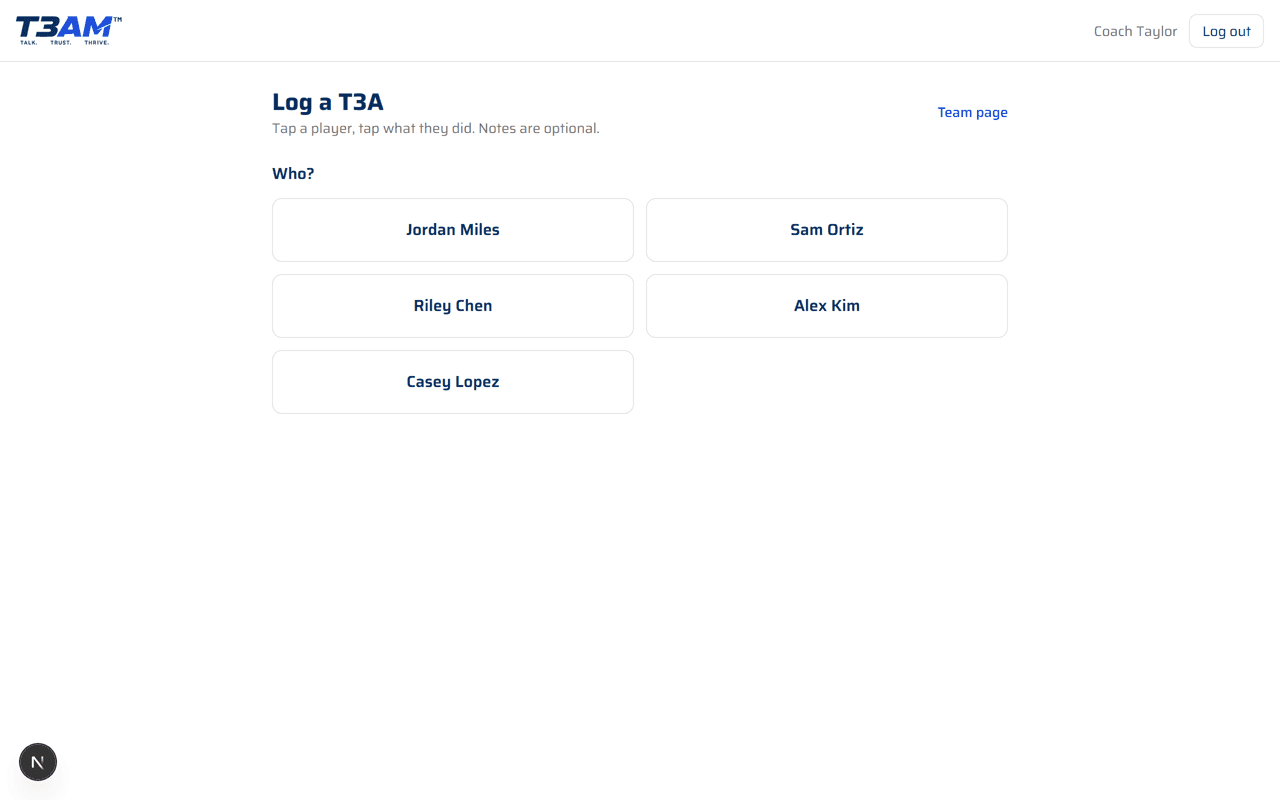
Log a T3A
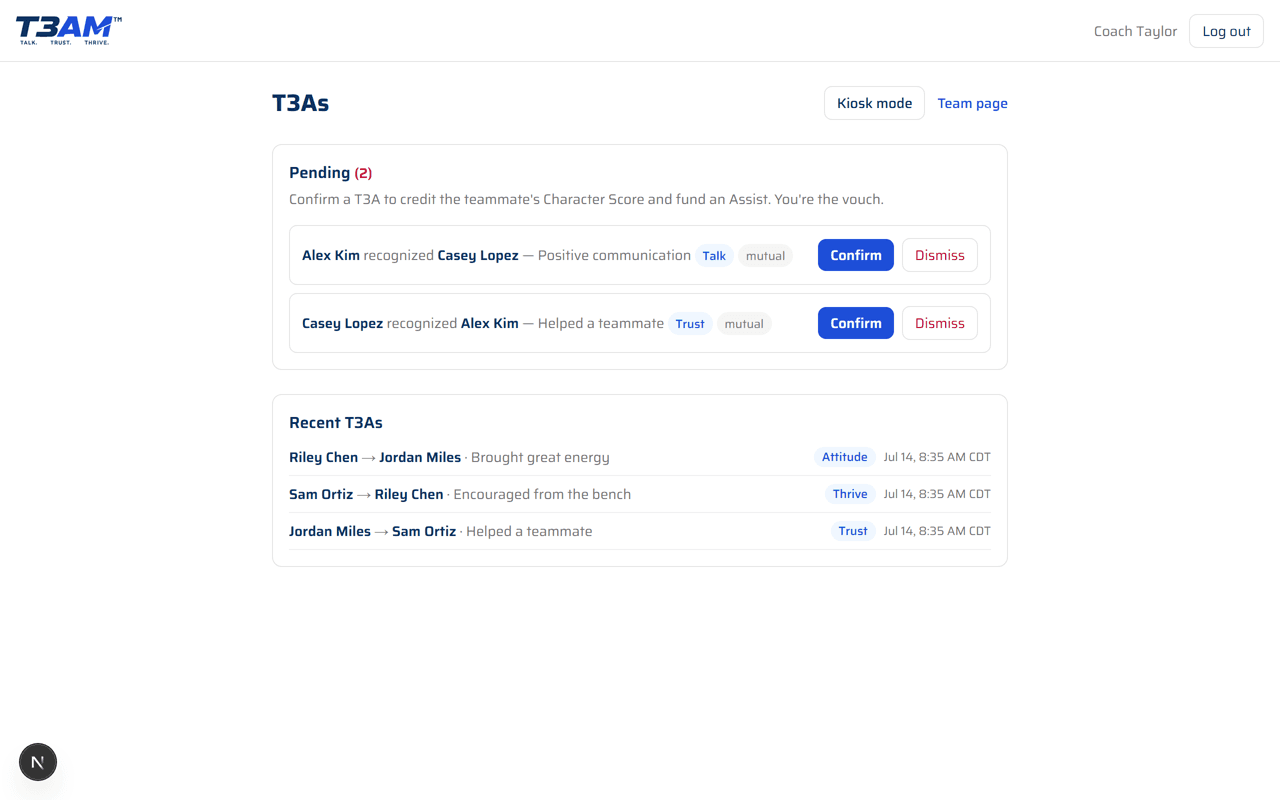
Tap a player, tap what they did — helped a teammate, positive communication, owned a mistake, extra effort, or encouraged from the bench. If you're logging after a specific game or practice, the event dropdown at the top attaches it — pick it once and it stays selected while you log several moments in a row.
Teammates recognize each other too
Players can give T3As to each other, capped per player per game so it can't turn into a popularity contest. Every peer-given T3A still needs the head coach to confirm it before it counts.
The season, rolled up
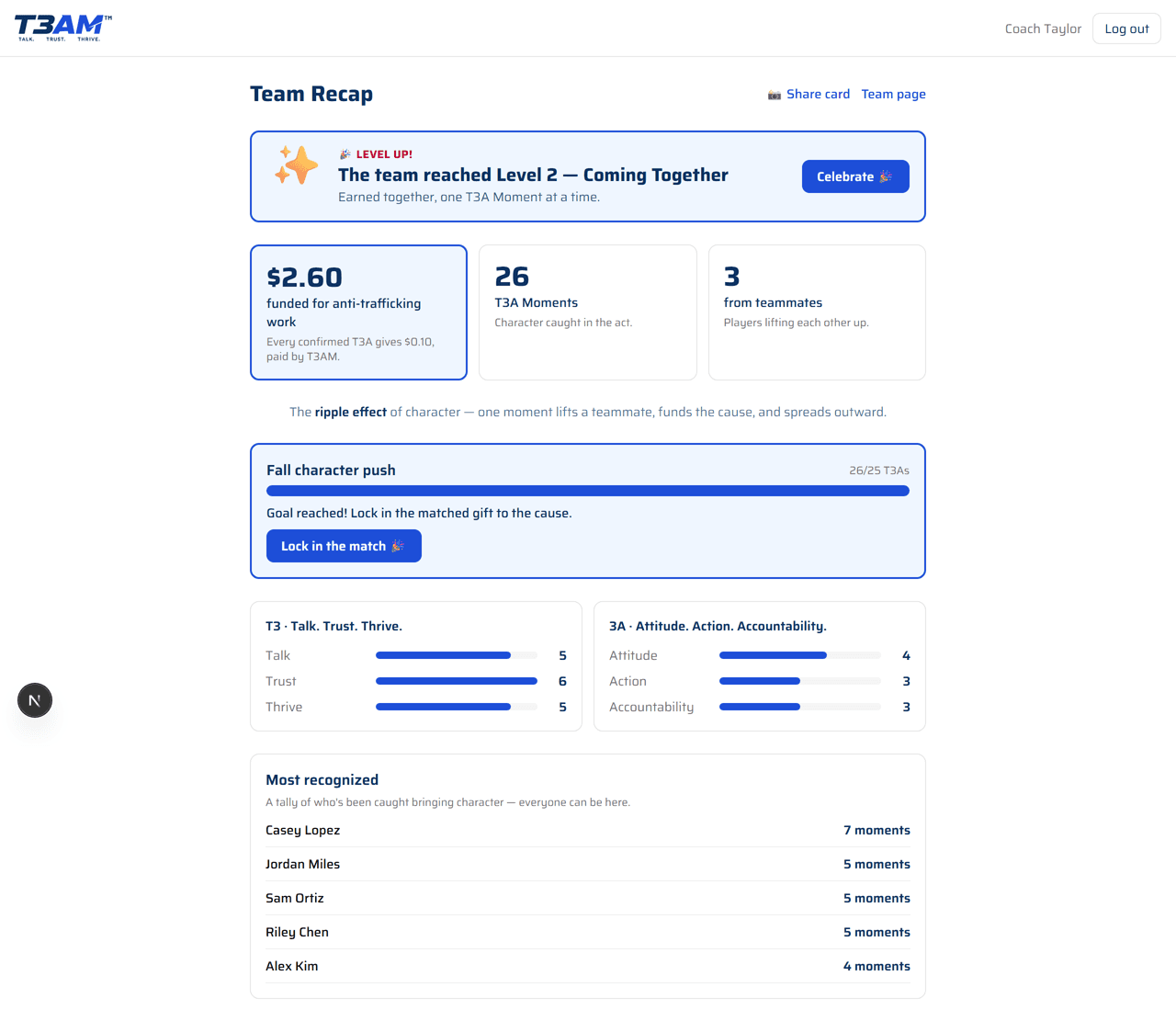
Total moments, progress toward the team's culture goal, and the running donation total — every confirmed T3A triggers a T3AM-funded donation, entirely separate from anything a family pays.
Stream a game for the families who can't be there
Rolling out team by team. The setup below takes a bit of lead time on YouTube's side, so we're switching this on deliberately rather than mid-season. Everything else on the live game page — play-by-play, box score, the shareable QR — works today.
T3AM doesn't host video and never stores any. You stream on your own YouTube account and paste the link into the game — under Live video (optional) on the live scoring page. Your team then sees the video above the play-by-play. Nothing is recorded on our side, and only people on your team can see it.
The rig
Any phone from the last five years, sideways, on a $20 tripod, plugged into power. Put it up high if you can — top row of the bleachers, scorer's-table side, wide enough to see both ends. Then leave it alone: no zooming, no following the ball. The tripod matters more than the camera.
Set the channel up early
T3AM accepts YouTube links. Two things to know before your first game, from YouTube's own rules: a channel needs at least 50 subscribers to go live from a phone, and a first-ever stream can take up to 24 hours to enable once the channel is verified. Neither is hard — but neither happens on game night, so do it a week ahead.
Do a driveway test first
Whichever you pick, start a private test stream from home a few days early. Every platform has some approval, verification, or waiting step, and the gym parking lot twenty minutes before tip-off is the worst possible place to discover it.
Set it to unlisted
An unlisted stream is visible only to people with the link — not searchable, not listed on your channel. That is the setting to use when the people on camera are children, and it is a large part of why T3AM accepts YouTube rather than the game-streaming platforms. Consider turning live chat off too, and tell your families what you have set up: with minors on camera that is a consent conversation, not a settings detail.
Either way, share the T3AM game page, not the platform link. T3AM gates the embed to your team; the raw platform URL is a side door that belongs to YouTube, not to us. The QR link on the game page prints a poster for the scorer's table — it opens the live board, and anyone not on the team gets a sign-in page instead.